Point at the problem. Hide the rest.
Arrows, callouts and numbered steps explain a screenshot faster than a paragraph. Redaction keeps a password or an email address out of the image you send. SuperCapture does both in one editor on your Mac.
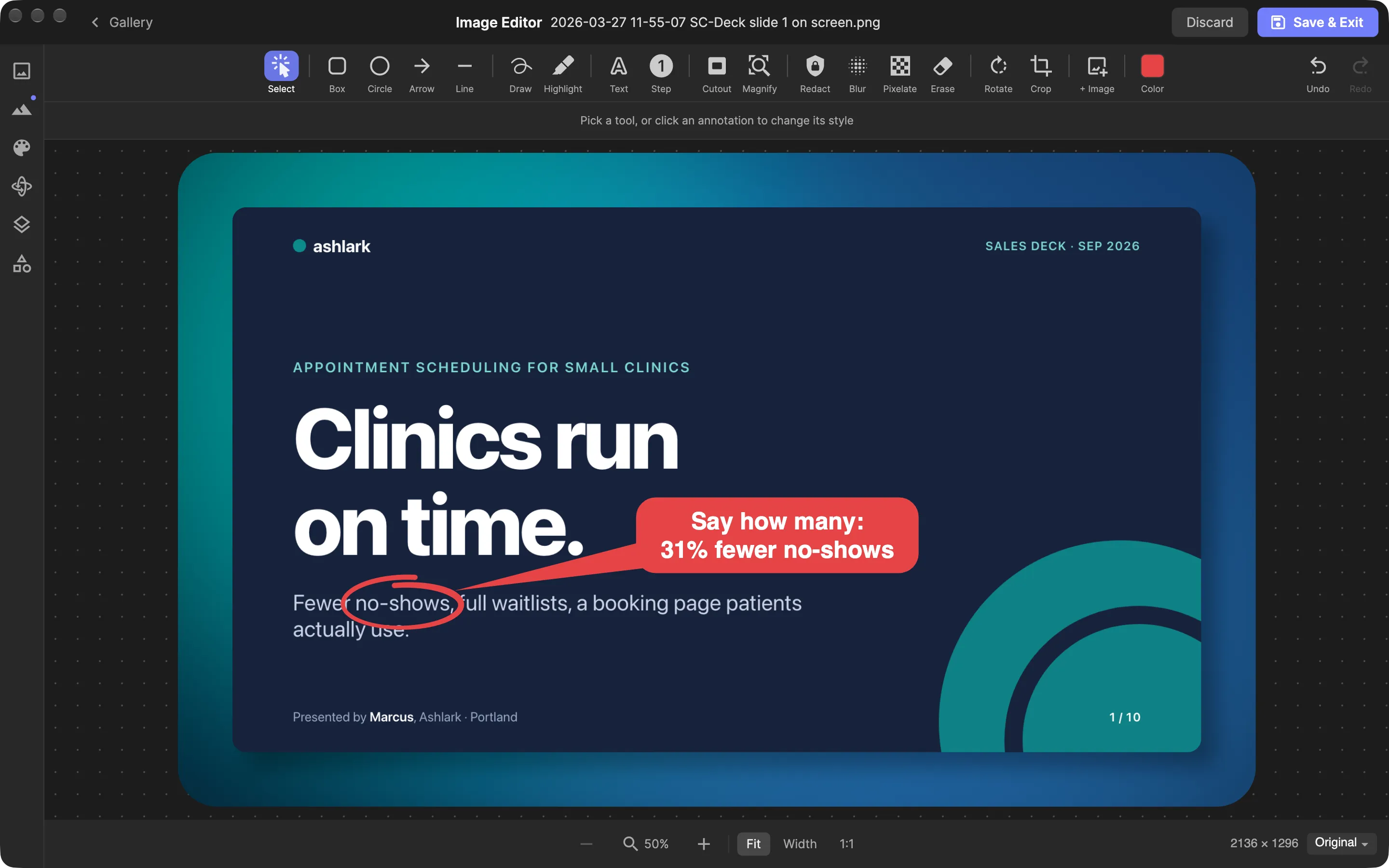
Mark up a screenshot on Mac
- Open a capture in the image editor. Take a new screenshot or open one from your gallery.
- Choose a tool. Boxes and circles come in solid, shaded, outline and hand-drawn styles. Text can be a plain textbox, an outline or a callout with tails that point at a spot. Arrows, lines, freehand drawing and a highlighter are alongside.
- Number the steps. Each Step marker you place takes the next number, so a sequence reads 1, 2, 3 without retyping.
- Draw attention to detail. A magnifier enlarges a region between 2× and 4×. A cutout dims everything outside the area you want someone to look at. Crop trims the image to what matters.
- Cover anything private, then export. Pick a redaction mode, draw over the sensitive area, and export a PNG, JPEG or WebP, copy the image, or drag the capture into another app.
Where annotated screenshots help
Bug reports. Number the clicks that lead to an error and put a box around the message. A developer can follow the steps without a call.
Design feedback. Use a callout to name a spacing or color issue and a magnifier to show the pixels in question. For a long page, capture the full page first so the comment keeps its context.
Support and documentation. Step markers turn a settings screen into a short guide. Redact customer names or account numbers before the image goes into a help article or a ticket.
Redaction done right
The editor offers four ways to cover a region, and its own descriptions are direct about which ones protect information:
- Redact scrambles the region’s pixels. The app describes it as secure: nothing is recoverable.
- Blur softens the region. It is not secure, and the detail can be recovered.
- Pixelate averages the region into blocks. It is not secure, because the layout still shows through.
- Erase blends the region away into the background around it.
Use Redact for passwords, keys and personal data. Blur and Pixelate are fine for reducing distraction, not for hiding secrets.
Know what happens when you export. Inside your library, annotations are editable layers stored beside the original image, so you can move or remove them later. A PNG, JPEG or WebP export, a copy from the open editor or a drag into another app produces a flattened image: the redaction is part of the pixels, with no separate layer to peel away.
The two SuperCapture Archive formats are different. They exist so an image can be reopened and edited in SuperCapture, which means they carry the layers and the original capture underneath. Do not send an archive to someone when the goal is to hide information.
Find secrets automatically with Auto-Redact
Right-click an image in the gallery and choose Process › Auto-Redact. SuperCapture reads the text in the image with on-device recognition and looks for common sensitive patterns: API keys and tokens (including AWS, GitHub, Stripe, Slack and Google formats), JSON Web Tokens, passwords, database connection strings, private key headers, credit card numbers, US Social Security and employer ID numbers, IP addresses, webhook URLs, email addresses and phone numbers.
A results window lists each match by category with the value partly masked. Clear anything you want to keep, then choose Redact Selected. SuperCapture saves the result as a new image using the secure Redact mode and leaves the original untouched.
Auto-Redact only finds text that recognition can read and that matches a known pattern. It does not look for names, street addresses or faces, and small, low-contrast or stylized text can be missed. It can also flag harmless text that happens to match, such as a version number shaped like an IP address. Review every image before you share it, and add manual redactions where needed.
Requirements and privacy
The current Mac download requires macOS 15 or later and Apple Silicon. Editing, text recognition and Auto-Redact run on your Mac; your captures are not uploaded to scan them. Cloud sync is optional. Read the security overview for what sync sends.
Every plan includes the full editor. On the free plan, exports of images you have marked up carry light SuperCapture branding, while unedited screenshots export clean. Paid plans export without branding.
Install SuperCapture for Mac, compare plans, or see how screenshot search works to find an annotated capture later.