Give your agent eyes on your Mac.
SuperCapture runs a Model Context Protocol server on your Mac. Connect a coding agent and ask it to capture a window, mark up the result, or find something you saved last month.
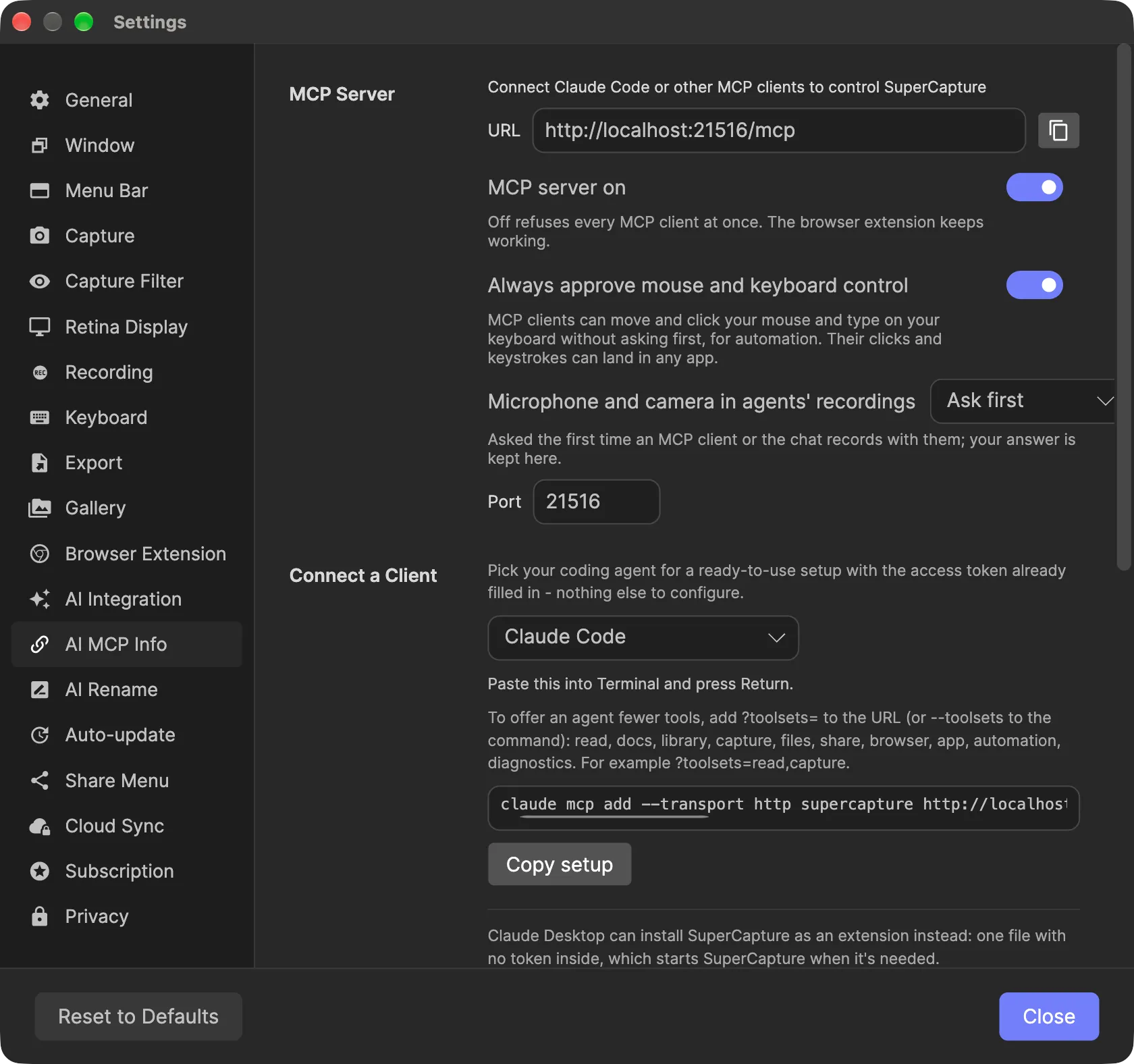
A local MCP server inside the Mac app
The Model Context Protocol (MCP) is how AI clients call tools outside the chat. When SuperCapture is open, it serves MCP at http://localhost:21516/mcp over streamable HTTP.
Every request needs the app’s access token, sent as an Authorization: Bearer header, unless the client starts SuperCapture itself (see Claude Desktop below), in which case SuperCapture supplies the token and it never sits in a config file. A client holding the token gets the full tool set. A client can choose a narrower set by sending an X-Access-Level header of readonly or interact. That header can only reduce access; it never adds any. Read-only still searches your library and renders any item in it, and Interact adds a look at the screen, so treat any connected client as able to see what you’ve captured.
Connect a client in four steps
- Open Settings. Choose Settings… from the SuperCapture menu, or press Command-comma.
- Select the AI MCP Info tab. The MCP Server row shows the server URL.
- Pick your agent under Connect a Client. The list covers Claude Code, Claude Desktop, OpenAI Codex CLI, Pi, Mistral Vibe, Cursor, VS Code (Copilot), Windsurf, Zed, Cline, Gemini CLI and JetBrains (Copilot), plus Other (standard JSON) for clients that aren’t listed.
- Click Copy setup and paste it where the app says. The snippet already contains your token. For Claude Code it is a Terminal command. For Cursor it is JSON for
~/.cursor/mcp.json:
{ "mcpServers": { "supercapture": { "type": "http", "url": "http://localhost:21516/mcp", "headers": { "Authorization": "Bearer <your token>" } } }}Formats differ by client (VS Code uses servers, not mcpServers), so copy the setup for the one you use.
Claude Desktop, and setups with no token
For Claude Desktop, click Install in Claude Desktop… in the same tab. It installs SuperCapture as a Claude Desktop extension: one file with no token inside, which starts SuperCapture when it’s needed. If you’d rather edit Claude Desktop’s config yourself, pick Claude Desktop under Connect a Client and copy that setup instead.
Claude Code has the same option. Claude Code (no token in config) is a command that has Claude Code start SuperCapture’s bridge, which reads the token itself, so regenerating the token doesn’t break it.
Offer fewer tools
To give an agent only part of the server, add ?toolsets= to the URL, or --toolsets to the command, with any of read, docs, library, capture, files, share, browser, app, automation and diagnostics. For example, ?toolsets=read,capture.
Under Connected Clients, the tab lists each agent that has used the server since SuperCapture started: its name, how it connected, which tools it has, how many calls it has made and when it was last active.
What you can ask an agent to do
The server has 24 tools, one for each part of the app, and each takes an action: capture with window, library_find with search. Here is what they cover:
- Look at a window. “Capture my browser window and tell me why the layout breaks.” The agent can call
screento list the windows and look at one without saving it, orcaptureto save it to your library. - Capture a whole web page.
capturewithpage_fullscrolls and stitches a browser tab through the SuperCapture browser extension, like a scrolling capture you would take yourself.capture_urldoes the same for a page by its address. - Record.
recordstarts, pauses and stops a screen or audio recording, with its panel on screen as if you had started it. - Annotate a capture.
doc_editadds arrows, numbered steps, text, highlights and redactions in one batch, applied as a single undo step.doc_readanddoc_renderlet the agent check the result the way it will export. - Search and organize the library.
library_findsearches the text in your captures, the same way screenshot search does in the gallery.library_editrenames, tags, files and trashes, and each change can be undone from the Activity view. - Hand a capture off.
exportwrites a file the way the editor’s Export does, andsharesends to the Slack workspace you connected in Settings, or makes a link. - Run your workflows.
workflowsruns one of the post-capture workflows you saved on any item.
The tool reference lists every tool and action.
What an agent can reach
The server listens on localhost and refuses requests addressed to any host other than localhost or 127.0.0.1, so other machines cannot reach it. Web pages cannot call it: a request carrying a website’s Origin header is rejected before any tool runs.
Any program on your Mac can reach the port, which is why the token is required. It is 32 random bytes, stored in a file only your macOS user account can read. It persists across launches, so configured clients keep working after an update. If you think the token has leaked, click Regenerate token in the same tab. The old token stops working on the next request, and you reconnect each client with the new setup. The Claude Desktop extension and the no-token Claude Code setup keep working, because neither stores the token.
Agent tools are bounded inside the app as well:
- File tools read gallery items or SuperCapture’s own temporary folder, not arbitrary files on your Mac.
- Copies, moves and exports can only be saved into folders you list under Approved Destinations. Anywhere else is refused, and replacing a file outside the temp folder asks you first.
- Anything that can’t be undone asks you every time: deleting items for good, emptying the Trash, unlinking a folder or rebuilding the library index.
- So does anything public: publishing a capture or folder as a web page, inviting someone, or taking a page down. Capturing a page by its address asks too, because it loads in your browser where you’re signed in.
- Moving the real mouse and pressing keys asks once per session, and needs the macOS permission to control the computer.
- Recording your microphone or camera asks the first time an agent does it, and your answer is kept under Microphone and camera in agents’ recordings (Ask first, Allow or Don’t allow).
- Share tools send only to destinations you configured, such as your Slack workspace, Discord webhook or Immich server.
The MCP server itself makes no cloud requests. Your AI client is a different matter: images and text a tool returns go to that client, and from there to whichever model provider it uses. Read the security overview for how local use differs from SuperCapture Cloud sync.
Limits to know about
- SuperCapture must be running. The server lives inside the app. If another app already uses port 21516, SuperCapture shows a notice and MCP tools are unavailable until that app quits and you restart SuperCapture.
- Web page tools need the browser extension. Page captures and
capture_urlwork only while the extension is connected. - macOS permissions still apply. Screen capture uses the Screen Recording access you grant the app.
- Your client decides how tool calls are approved. SuperCapture’s own confirmations cover only the permanent, public and input actions listed above.
Requirements
SuperCapture needs macOS 15 (Sequoia) or later and Apple Silicon (M1 or later). You also need an MCP client that either connects to a streamable HTTP server with a custom header or, like Claude Desktop, starts a local server by command. Every client in the Connect a Client list does one or the other.
Install SuperCapture for Mac, then open Settings to connect your first agent.