Show the bug instead of describing it.
Repros, design review and explainers as captures the engineer can scrub through, and an agent that makes them for you.
Free · macOS 15 (Sequoia)+ · Apple Silicon · no account needed
“Which step did the bug happen on?”
A short recording of the steps that lead to it, with every click highlighted and a zoom on the control that fails, trimmed in the video editor to just the moment. Export MP4 for the issue tracker, or a GIF that plays inline in the thread. If a picture is enough, grab the one window, even one hidden behind others, and put an arrow on the wrong value.
The old way
- Steps to reproduce, 1 to 9
- “Can’t reproduce”
- A call to watch it happen
A clip they can scrub
Made with Screen recordingMarkup
“Can we move that a few pixels?”
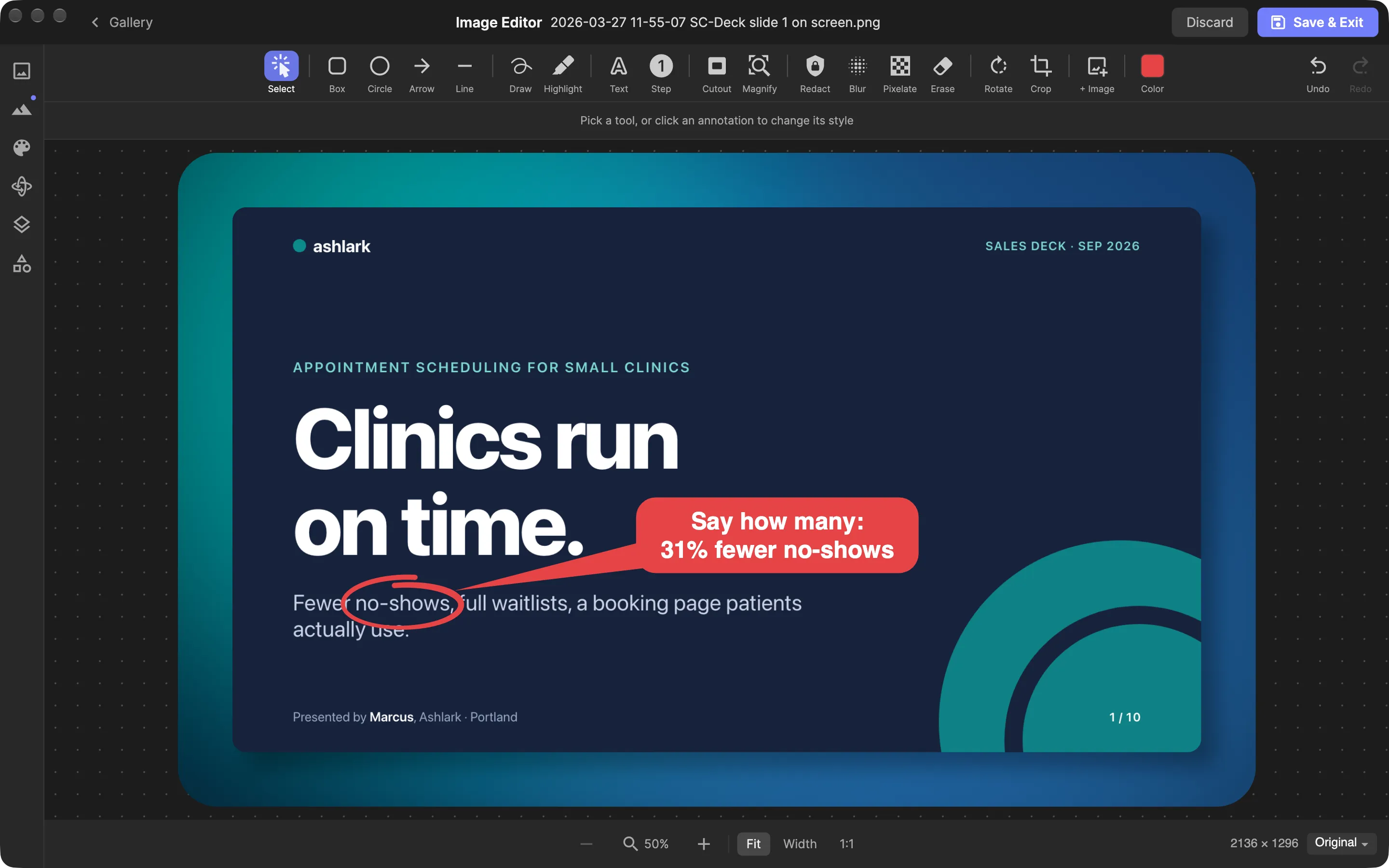
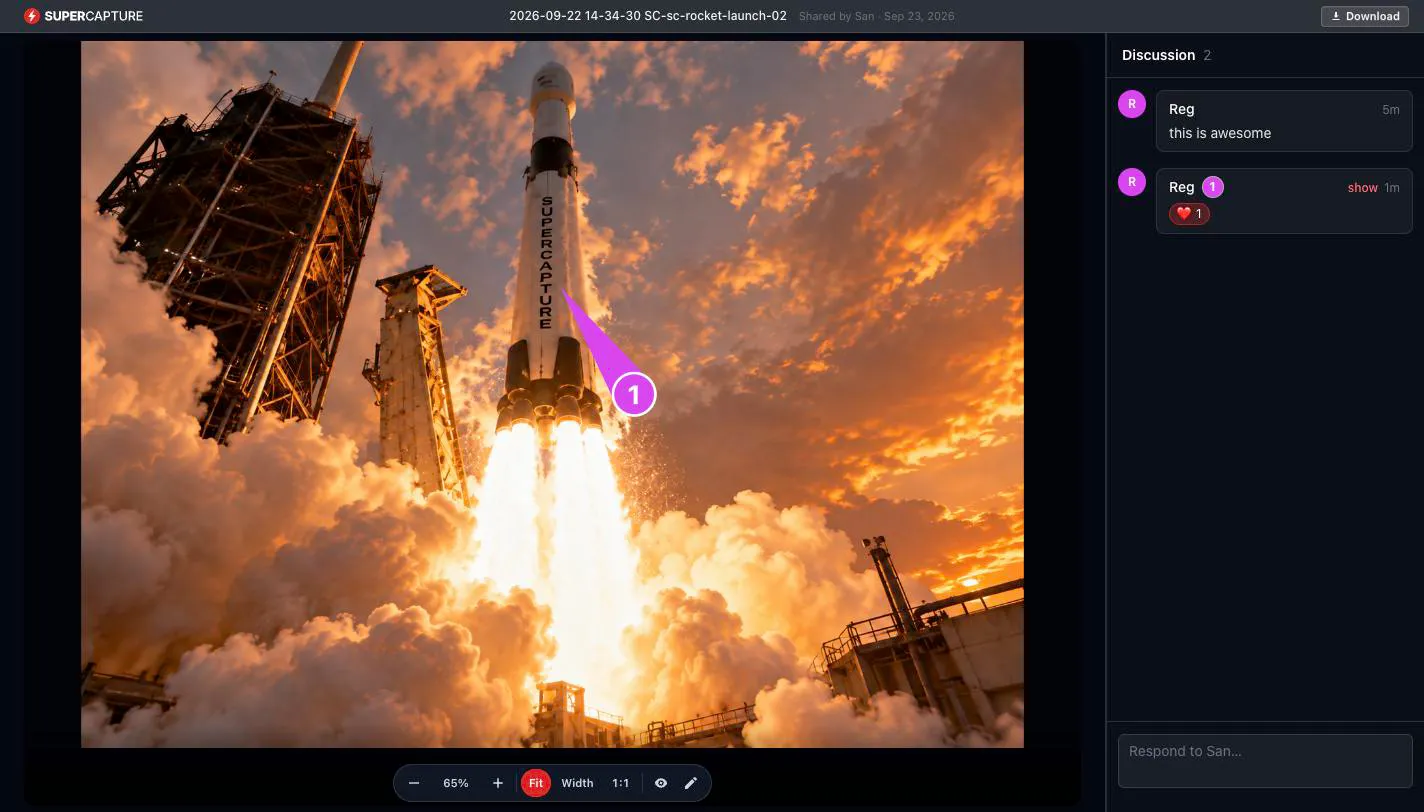
A grab of the build to the pixel, with an arrow, a label and step numbers on what changed. When the feedback only makes sense against the whole page, capture it top to bottom from the browser. Drag the result straight into Figma or Slack, or share it as a web page and let the designer pin a comment to the exact spot on Pro.
The old way
- “No, the other button”
- A screenshot in a thread
- A meeting to point at it
Marked up, to the pixel
Made with MarkupScrolling captureCommentsPro
“What does this feature actually do?”
A walkthrough recorded with zoom and animated text on the steps, or the marked-up screenshots of a whole flow on one share page: up to 200 images behind a single link that opens in a browser with no account. Add a voice note when typing the context would take longer. Six months on, sales finds it again by typing the feature’s name.
The old way
- A doc
- A deck
- A demo call for each team
One link, replayed
“Can an agent do the markup?”
SuperCapture runs an MCP server on your Mac. Claude Code, or any MCP client, gets the same tools you reach for by hand: capture a window, number the steps, draw the arrow, search the library, post to Slack. Setup is one command, copied from Settings. How agents use SuperCapture
You: Grab the Settings window, number the three steps to connect Slack, and point at the button.
- screen listfinds the Settings window
- capture windowgrabs it into the editor
- doc_editnumbers the three steps and points at Connect Slack
- editor closesaves the markup
You: Find the capture where I marked up the refund form.
- library_find searchsearches the words in every capture
- doc_readreads its markup
- editor openopens it to edit
You: Post the checkout bug clip to #bugs.
- library_find searchfinds the clip
- share sendposts it to the channel
The old way
- Take the screenshot
- Mark it up
- Save it
- Open Slack
- Upload it
Ask for it once
Made with MCP serverMarkupScreenshot search
Switching from another tool? How SuperCapture compares vs CleanShot X, vs Snagit and vs Screen Studio.
Ready to never explain it twice?
One app instead of five: screenshots and markup, recording and editing, audio, web pages and a Reader, and a library that finds any of it again when the question comes back.
Free · macOS 15 (Sequoia) or later · Apple Silicon (M1 or later) · no account needed
Free includes every capture tool, the editor and local search, with light branding on exports. Individual removes the branding and syncs your whole library; Pro adds comments, shared folders and end-to-end encryption.